Document Library Search User Manual
Last updated March 3, 2026
Document Library Search is a public-facing web application that allows visitors to browse the Clark County Regional Flood Control District's public document library, search for specific documents, and view document PDFs. This user manual details how to use its features.
If you find any bugs or issues with the application, please contact us and let us know.
Table of Contents
Header Links
At the top of the website, on every page, there is a dark blue header. It contains two links:
- On the left, there is a link titled "CCRFCD" with the Regional Flood Control District logo. This link goes back to the regionalflood.org website.
- On the right, there is a link titled " Document Library Search." This link goes back to the home page of Document Library Search, where you can search for documents.
Searching for Documents
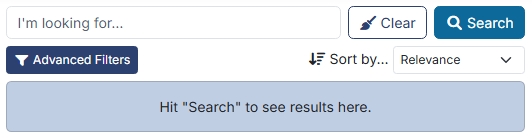
To search for a document, first navigate to the home page of the app. Locate the search bar (with placeholder text "I'm looking for...") near the top of the page and enter in a word or phrase to search for. To perform a basic search, you don't need to change anything else—just click the " Search" button to the right (or hit Enter on your keyboard). Once the search is complete, the results will be displayed below, inside the light blue box.
The search will return every document that includes at least one word from your search phrase. If you want to search for an exact multi-word phrase, you can enclose your phrase in double quotes like so: "multiple word phrase". The phrase inside the quotes will be treated like its own single search term, so you will only get results that contain all of those words in that exact order. You can also combine quoted phrases with non-quoted phrases (phrase1 phrase2 "multiple word phrase"), or use multiple quoted phrases ("multiple word phrase1" "multiple word phrase2").
By default, the results are sorted by relevance, so documents that contain the highest number of keyword matches will be shown first. If you want to view the list of documents in a different order, click on the dropdown labeled " Sort by..." and choose a different sort method. The results will be refreshed automatically.
If you want to clear the search bar to start over, click the " Clear" button near the top right. Performing a search without a search phrase will return the full list of documents.

Advanced Filters
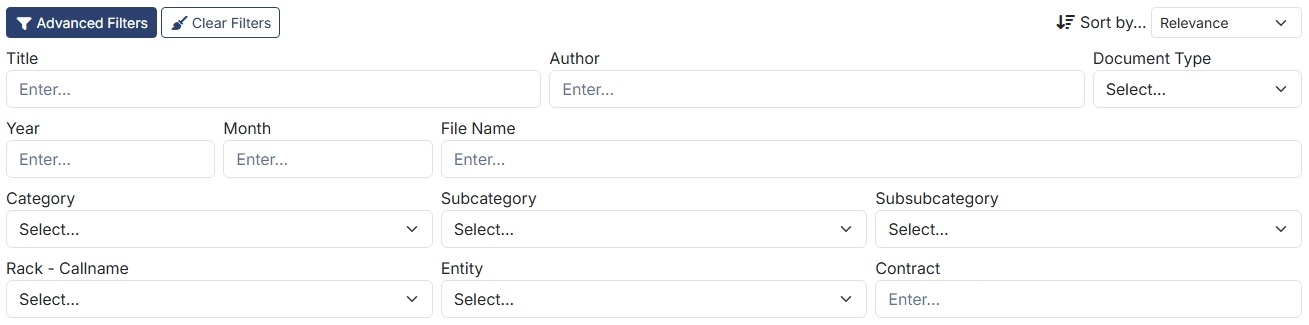
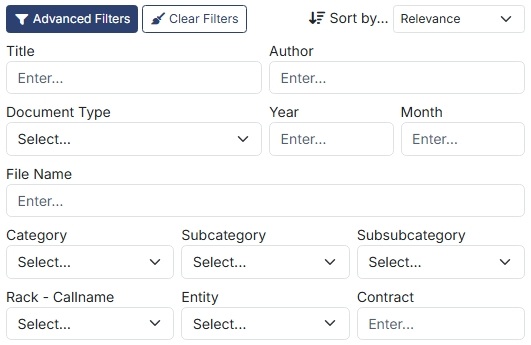
Using only a search phrase can return a long list of results. If you know specific details about the document you're looking for, you can enter them into the advanced filters to narrow down the results. Locate the " Advanced Filters" button, on the left beneath the search bar, and click it to open the collapsible list of inputs.
All regular text fields (not dropdowns) will filter for documents that contain an exact match somewhere in that value. For example, inputting "engineering report" as the title filter will return documents titled "Geotechnical Engineering Report" and "Preliminary Engineering Report," but not "Engineering Study."
To filter for documents in a specific subcategory, the parent category needs to be selected first. After clicking on the dropdown labeled "Category" and making a selection, the list of subcategories will be updated. The same applies to the list of subsubcategories each time a subcategory is selected. If the list of subsubcategories is empty, that means there are no subsubcategories for the selected subcategory.
Note: If you are searching for a valid project number as your search term or title, have selected the Category/Subcategory "Engineering/CAPITAL IMPROVEMENTS", or have selected the Rack - Callname "520 - Project Files", then any documents marked as "as-builts" will always appear at the top of the search results, regardless of your selected sort filter.
If you want to clear all of the advanced filters at once to start over, click the " Clear Filters" button near the top left. It is only visible when the list of advanced filters is open.
Browsing the Results
After you click the " Search" button, or choose a sort method, the app will find a list of documents that match your search criteria. While it is loading, a spinner will appear in the top right corner of the light blue results box to show that there is a search currently in progress. Once the results have been found, they will be displayed in the box where the spinner was.
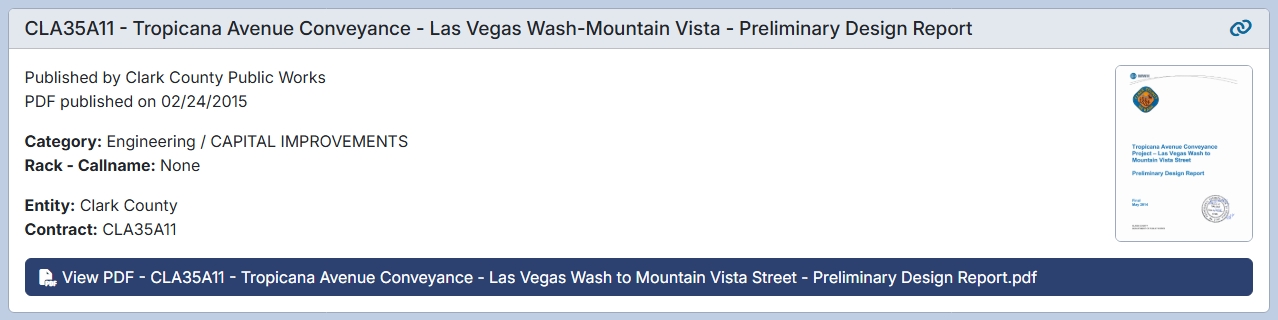
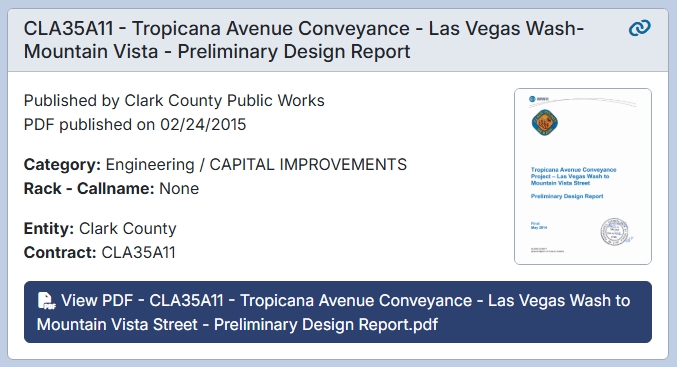
Each result is contained in its own card, which displays its title, details, and more. On the right side, if a public PDF is available, there will be a thumbnail preview of its first page. To open the PDF in a new tab, click the dark blue button at the bottom of the card with its file name. If you only want to copy the link to the PDF without opening it, click the link icon () in the top right corner of the card.
If you want to share the list of results you got for your search, you can click the folder icon () in the top left corner of the light blue results box, next to the total result count, to copy a link to the page.
If the app couldn't find any documents that match your search criteria, an error will be displayed with the message "No results were found."


Page Navigation
The list of search results is displayed 30 documents at a time. At the top of the list, the total result count will be listed, along with the range of results currently being displayed. To see more results, you can choose a page at the bottom of the result list. To get there quickly from the top, click the button with downward-pointing arrows in the top right.


From there, you can choose a different page of results to view. Click on a specific page number to go to it, or on either the left or right arrows to go to the previous or next page. If the page number you want isn't currently visible, enter it into the input field labeled "Jump to page..." and then click the "Go" button to the right (or hit Enter on your keyboard). If you want to quickly scroll back up to the top of the result list, click the button with upward-pointing arrows in the bottom right.

